Open your phone right now. Hold it the way you normally hold it. Do not think about it — just grab it and notice where your thumb naturally rests. For most people, it is hovering somewhere near the middle-bottom of the screen, curled slightly, with a comfortable reach spanning the lower two-thirds of the display and a much harder reach to the top-left and top-right corners.
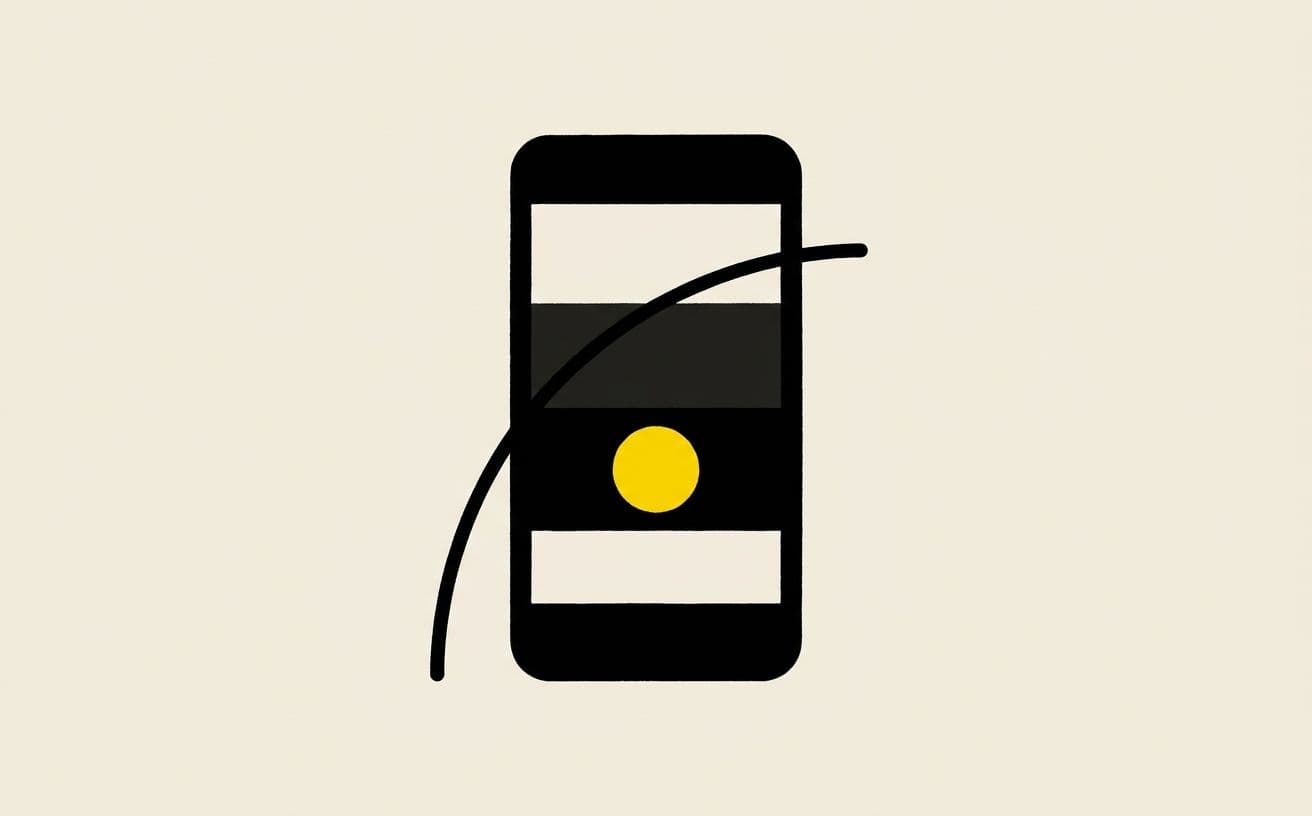
That map — the ergonomic arc your thumb traces without strain — is called the thumb zone. It has been documented in UX research since at least 2013 (Steven Hoober's seminal study identified it on 1,333 real users), refined by every major mobile OS maker, and is still ignored by the majority of websites we audit. Buttons live at the top of the screen, sign-up forms stack vital fields above the fold requiring scrolling and stretching, and primary CTAs land in dead zones that require users to shift grip to tap.
Mobile traffic crossed 60% of web usage in 2017 and is now around 70% on most sites. If your site's mobile experience still feels like the desktop shrunk down, you are losing conversions to every competitor who designed for the thumb.
The Thumb Zone Map
Steven Hoober's original research and subsequent updates give us a reliable three-zone model for a right-handed user holding a phone with one hand:
- Natural zone — the easiest-to-reach area. Spans roughly the middle and lower-middle of the screen, slightly right-of-centre on a right-handed grip. This is where primary actions should live.
- Stretch zone — reachable but requires thumb extension. The top-middle, lower corners, and middle-left areas. Acceptable for secondary actions but not primary.
- Hard zone — requires a grip shift or two-handed use. The top-left and top-right corners, top-middle on very large phones. Reserved for rarely-used controls (settings, close buttons).
Left-handed users invert left-and-right zones but the vertical structure is identical. For right-handed users — roughly 85–90% of the population — you can design to the right-hand map as your primary and verify the left-hand mirror works.
The Patterns That Actually Convert
The following five patterns consistently move conversion rates up on mobile in our experience running design optimisations for clients. Each is simple; most are not yet default.
1. Primary CTA in the Lower-Middle Third
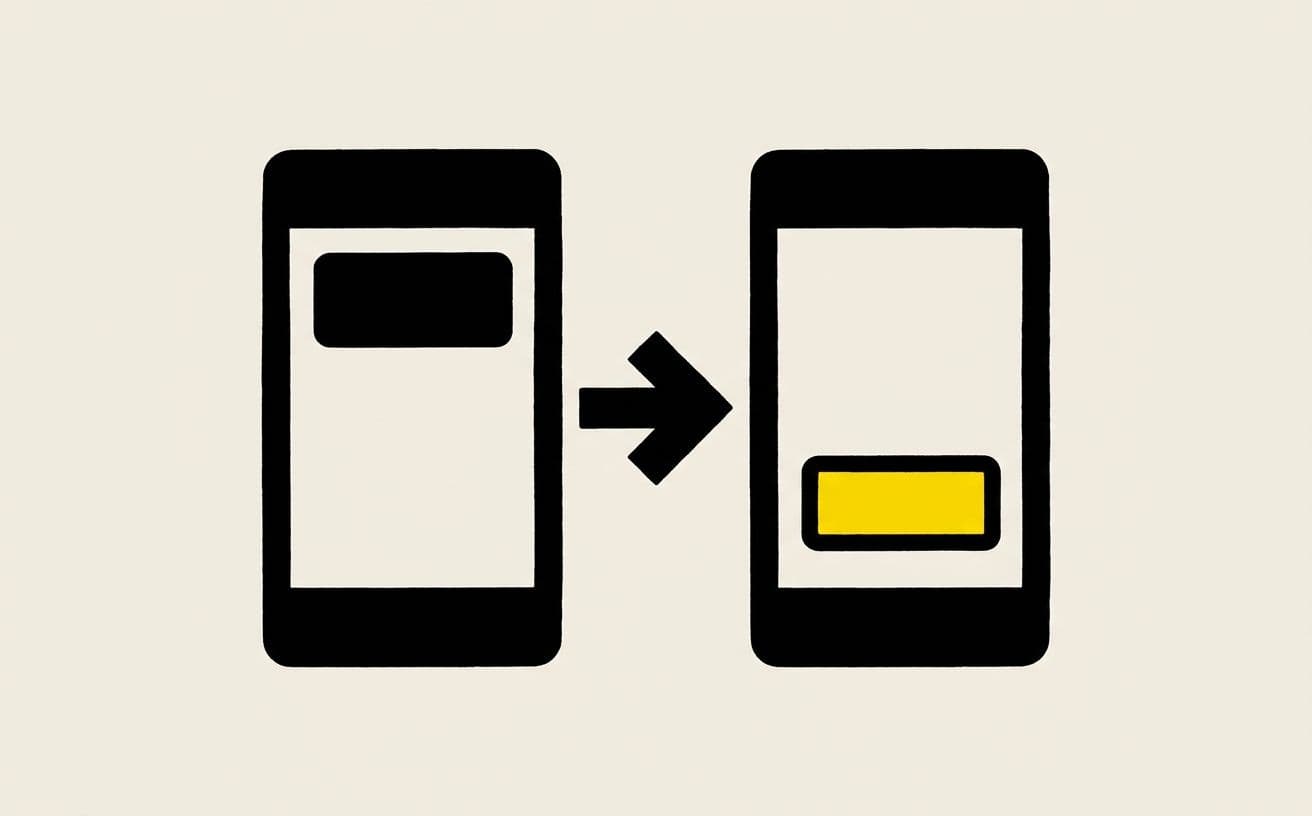
The single biggest conversion lift available to most sites. Take your primary action — 'Add to cart', 'Sign up', 'Start free trial' — and place it so that at rest state (no scrolling) the button sits in the lower-middle of the viewport. On mobile, this usually means: a fixed bottom bar, a CTA button below the hero, or an intro section short enough that the CTA is naturally thumb-accessible.
A sticky 'Add to cart' bar at the bottom of a product page is one of the most-tested patterns in e-commerce UX for a reason — it consistently outperforms having the button only in the product card. Industry studies regularly report 10–30% conversion lift for this one change.
2. Form Fields Stacked, Not Side-by-Side
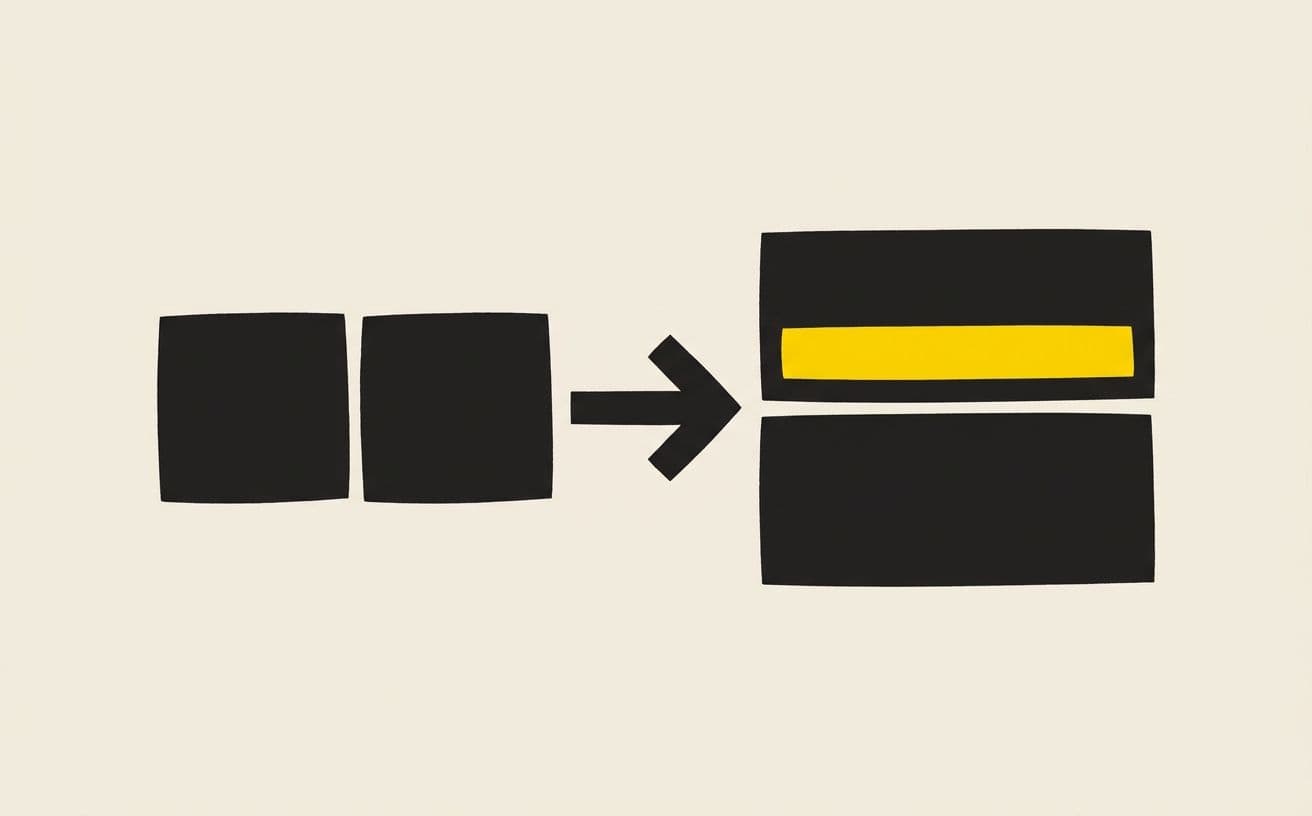
On desktop, 'First Name | Last Name' side-by-side looks clean. On mobile, it forces the user's thumb to cover twice the horizontal distance for each field swap, and the fields get squished to 40% of screen width. Always stack vertically on mobile. Use a single column of full-width fields. The extra scroll cost is negligible; the tap accuracy gain is enormous.
3. Tap Targets at Least 48×48px with Adequate Spacing
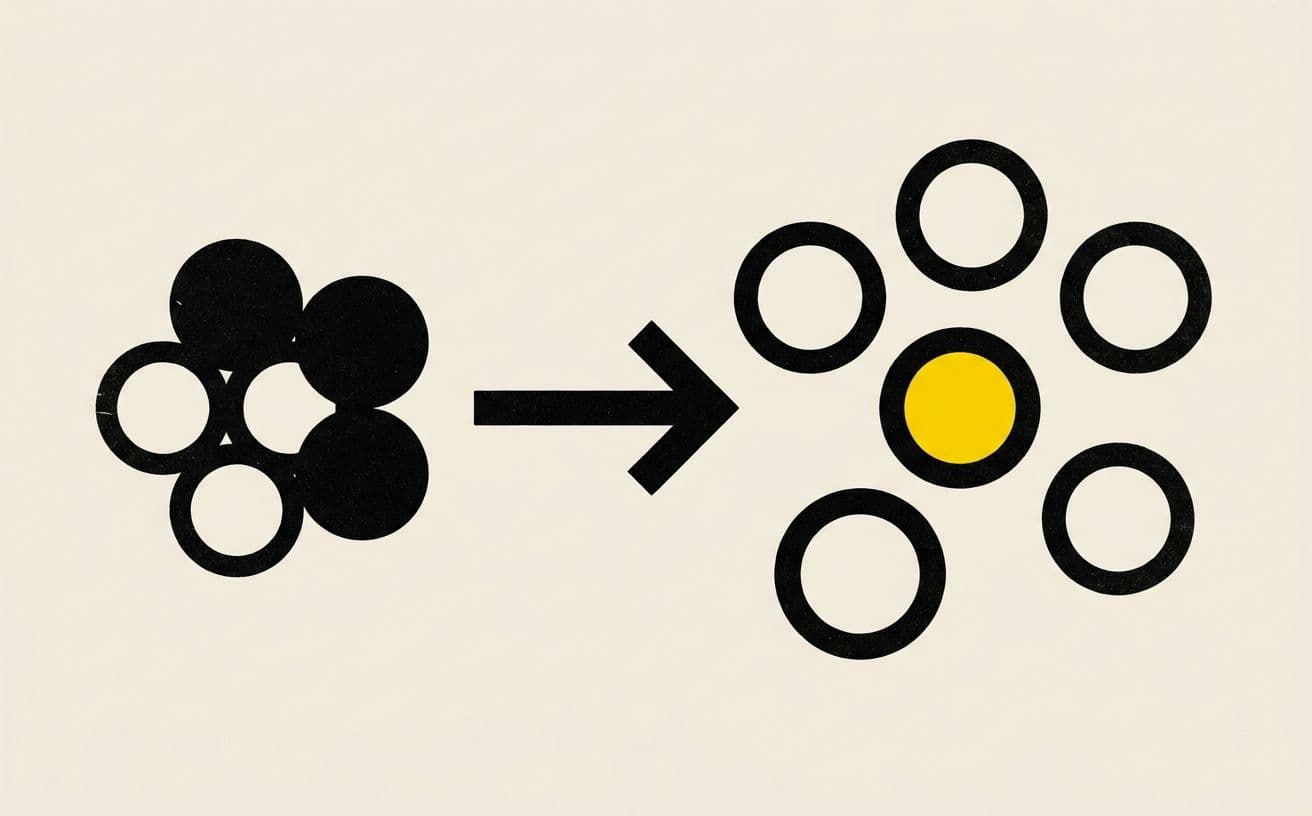
The WCAG 2.1 minimum tap target is 48×48 CSS pixels, and Apple's HIG recommends 44×44 pt (which is roughly the same). Space between tap targets should be at least 8px. Buttons smaller than 44×44 are frequently misclicked; adjacent buttons with <8px spacing cause users to tap the wrong one roughly 15% of the time.
This sounds obvious. It is violated constantly. Footer links clustered together, icon buttons with no padding, navigation with tight spacing all fail this test. On your next mobile audit, measure every tap target in CSS pixels. You will find violations on almost every site.
4. Persistent Bottom Navigation

For sites with more than two primary destinations on mobile, persistent bottom navigation beats top-hamburger almost every time. The bottom position respects thumb ergonomics. The always-visible state avoids the discoverability hit of a hamburger. Four to five primary destinations fit comfortably; beyond that, hamburger still wins.
This pattern spread from iOS/Android native apps to mobile web slowly because of the engineering overhead of making it feel native. In 2026 the tooling is mature enough that there is no excuse: frameworks like Radix, Chakra, and shadcn ship accessible bottom-nav components, and Safari/Chrome handle them correctly.
5. Inputs With Appropriate inputMode and type
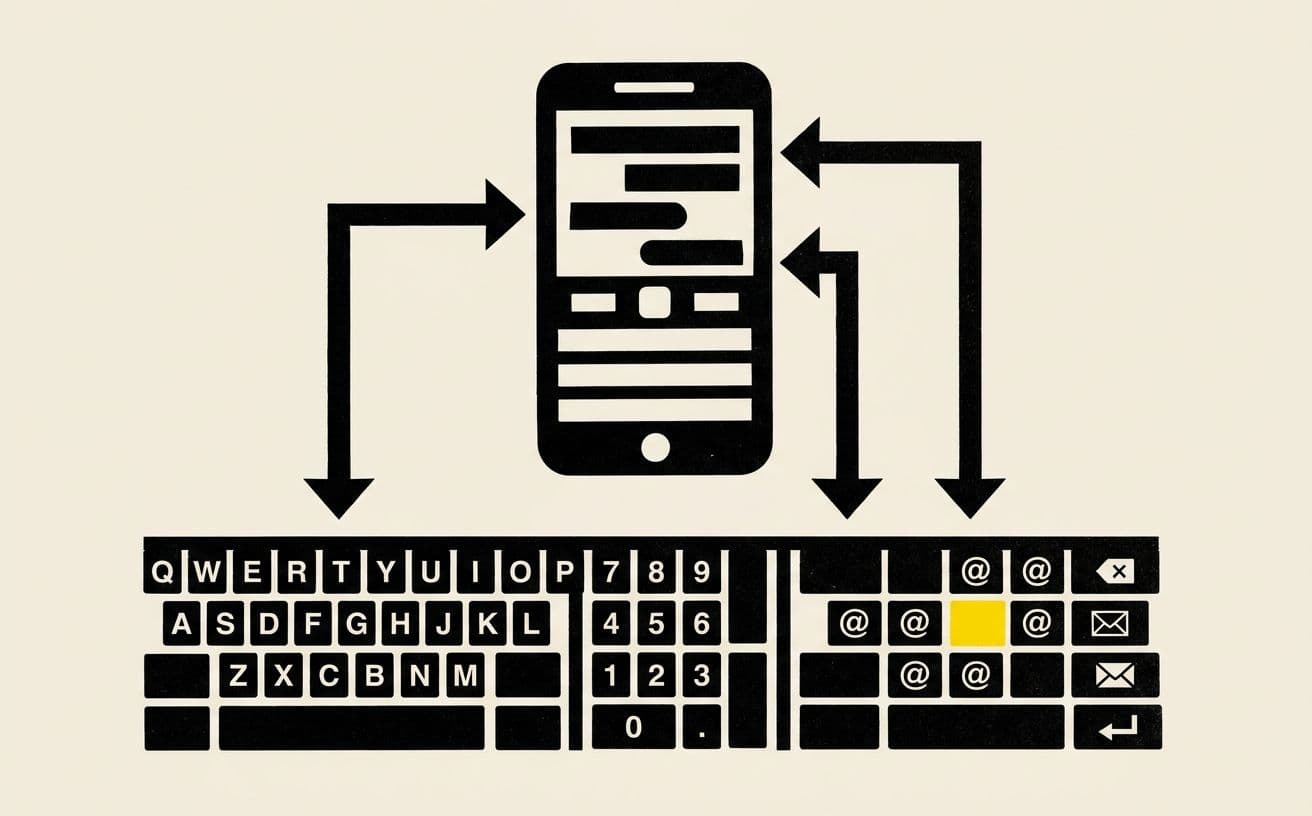
This is the most undervalued pattern in mobile UX. When a user taps a form field, the OS brings up a keyboard. Which keyboard depends on the HTML type and inputMode attributes. Get this wrong and users fight the keyboard — tapping the wrong characters, hunting for the @ symbol, switching between letters and numbers.
- Email fields — type="email" inputMode="email" — keyboard shows @ and . prominently
- Phone fields — type="tel" inputMode="tel" — numeric keypad appears
- Numeric fields like age, quantity — inputMode="numeric" — numeric keypad without the tel formatting
- Decimal fields like prices — inputMode="decimal" — includes the decimal separator
- URL fields — type="url" inputMode="url" — keyboard shows .com and /
- Search fields — type="search" — surfaces a 'Search' button instead of 'Go'
Set autoComplete on every field. The browser remembers previous entries and can autofill from saved contacts. We see 20–40% faster form completion with correctly-set autoComplete on mobile. The attribute takes two minutes to add and is free.
The Anti-Patterns to Avoid
Just as important as what to do is what to stop doing. These are mobile-UX sins we still see on 80% of new sites we audit.
- Intrusive popups that cover the screen on mobile. Google explicitly penalises these. Use a slim banner instead, or delay until the user has engaged with the content.
- Horizontal scroll. Any horizontal scroll on a mobile site is a bug unless it is a deliberately horizontal UI pattern (e.g. a carousel). Force yourself to audit every page — horizontal scroll sneaks in through long tables, wide images, or fixed-width elements.
- Tiny text. Body copy below 16px forces zoom. Use 16px minimum for body text and 14px minimum for secondary labels.
- Hover-only interactions. Tooltips that appear on hover do not exist on mobile. Design for tap-to-reveal, or surface the information directly in the UI.
- Auto-playing video with sound. This is the second most complained-about mobile UX pattern after popups. Never auto-play audio. Auto-play muted video is acceptable if it's contextually relevant.
- Sticky headers that eat half the viewport. A 60px sticky header is fine. A 180px one with a search bar, nav, and promo banner is not — you have cut the thumb zone in half.

A Mobile-First Audit Checklist
Run this on your own site this afternoon. Use Chrome DevTools with device emulation set to a mid-tier Android (e.g., Pixel 5). Check every page that matters — homepage, top landing pages, product pages, checkout.
- Can I tap the primary CTA with my thumb without moving my grip?
- Is every tap target at least 48×48px with 8px spacing from neighbours?
- Are form fields stacked vertically, with correct type/inputMode/autoComplete attributes?
- Does body text hit at least 16px?
- Is there any horizontal scroll? Any page element forcing horizontal overflow?
- Do popups respect Google's intrusive-interstitial guidelines, or are they full-screen blockers?
- Does the site avoid hover-only interactions?
- Does video auto-play? Is it muted?
- How much vertical space does the sticky header consume? Is that space earning its keep?
- If the site has 3+ primary destinations, is there persistent bottom navigation?
Most sites fail three to five items on this list. Fixing them in sequence — CTA placement first, tap targets second, form fields third — is usually a two-to-three-week engagement for one developer and produces measurable conversion lift within a month of going live.
Why This Matters Beyond Conversion
Good mobile design ranks better. Google's mobile usability signals feed into the ranking algorithm. Sites that fail tap-target sizing or viewport configuration are explicitly de-ranked on mobile queries. A site that fails three of these tests is competing against better-designed competitors with both hands tied.
Good mobile design is also the cheapest accessibility win available. Every improvement to thumb-zone ergonomics, tap-target sizing, and keyboard input type simultaneously improves usability for people with motor impairments, low-vision users, and older users with less-precise dexterity. You do not have to choose between converting better and being more inclusive — they are the same work.
The Shortest Possible Summary
Hold your phone. Notice where your thumb rests. Put your primary buttons there. Make the tappable things large and well-spaced. Stack your forms, set the right keyboard, and respect the user's scroll. Delete the popups and the auto-play video. Test on a real mid-range Android on real 4G — not your $1,200 device on office WiFi. Your mobile audience is 70% of your traffic; they deserve more than a shrunk-down desktop.
Run SocialScript's free SEO audit for a baseline mobile health check — it verifies viewport, tap-target, and mobile-friendly signals. If your site fails any of them, that is where to start.